eBay Variations Not Showing? Check These Causes First
eBay variations not showing? First identify what is missing: the control for creating variations, an accepted variation attribute, or a particular option on the listing. For a new listing, check the fixed-price format and category eligibility, including any second category. If the controls are present but one combination is absent, inspect that combination’s details and quantity instead of changing the whole listing.
Those are different problems. A seller who cannot find the creation button needs a different check from a seller whose navy medium shirt has sold out. Use the routing table below before changing settings or starting another listing.

Which variation problem do you have?
| Symptom | Evidence to collect | Next check |
|---|---|---|
| No control to create variations | Listing format, exact category path, second category and listing tool. | Check format and category support before looking for a different button. |
| An attribute is rejected | The complete error message and the attribute name and values. | Compare the proposed relationship with the allowed variation details. |
| One size/color combination is missing | Its saved values, quantity and what the buyer view shows. | Reconcile that specific combination with physical stock. |
| An existing listing will not accept a change | Item ID, listing status, sales/bids or offers, and the exact attempted edit. | Check revision restrictions rather than treating it as a new-listing setup problem. |
This is an editorial troubleshooting aid, not an eBay diagnostic report. Record the symptom before trying a correction so you can tell whether the correction addressed it.
Check format and categories when the button is missing
Required: eBay’s current variation help permits variation listings in most categories only in fixed-price format. It directs sellers to the advanced listing tool or Seller Hub and allows up to five variation details, 50 values per detail and 250 variations in one listing. Those maximums do not make an unsupported category eligible.
- Record the listing’s format. For a new variation listing, use fixed price rather than auction.
- Check the exact category selected for the actual product. A broad department name alone does not establish support for every subcategory.
- If you selected a second category, check it too. eBay’s category guidance says an unsupported second category prevents creation of a variation listing.
- Open the draft in Seller Hub or the advanced listing tool and follow its current variation flow. An old tutorial’s button position may not match your screen.
Seller best practice: do not move an item into an inaccurate category just to reveal a control. Separate what the item is from what it is used with, then verify the exact primary and second categories. Category accuracy comes before convenience.

If the attribute is rejected, check the relationship
A visible variation section does not mean every attribute is valid. eBay’s Seller Center item-specifics guidance explains that variation-detail requirements can change. Its example replaces an unsuitable attribute name with a relevant allowed detail; when no suitable relationship exists, separate listings are needed.
Write down the attribute name and all its values. Ask whether they describe options of one closely related product or separate products grouped for convenience. Do not rename an unrelated collection “Color” just to pass a field check. Keep ordinary item specifics separate from the dimensions a buyer actually selects.
When the choice is unique buyer text rather than a repeatable stock option, use the eBay personalization request guide to keep the purchased variation and the exact custom wording separate.

Check the missing combination, not just total stock
A total of eight shirts does not tell you whether a navy medium shirt is available. eBay asks sellers to match each variation’s quantity to inventory. Its help page also warns that relisting can restore zero-quantity variations to their original quantities, so quantities need review after relisting.
Here is a fictional stock check for one shirt style. The figures are teaching examples, not seller data or an eBay screen.
| Combination | Counted stock | Saved quantity | Review action |
|---|---|---|---|
| Navy / Medium | 0 | 0 | No stock to offer. Do not increase it to make an option appear. |
| Navy / Large | 3 | 3 | Quantities agree. If the option is absent, inspect saved values and the actual buyer view. |
| Gray / Medium | 2 | 0 | Recount and confirm availability before correcting the saved quantity. |
| Gray / Large | 3 | 5 | Investigate the mismatch; do not advertise two units you cannot supply. |
The point is not to force every cell into stock. It is to find whether the issue is the saved option, its available quantity or how it is displayed. Save legitimate corrections, then inspect the buyer-facing selection again. This table does not prove how eBay will render every sold-out option.
Existing listing? Check revision limits before rebuilding
eBay’s current revision table distinguishes creating variations from changing a live listing. For fixed-price listings with variations, it says sellers can add or remove variations but cannot edit variations. Check the listing state and the exact permitted action before ending, relisting or duplicating a working listing.
If the cause remains unclear, prepare a short support note rather than repeatedly changing unrelated fields:
- Where: marketplace, item ID or draft reference, and listing tool.
- What: the missing control or exact combination, plus the complete error text if any.
- Context: format, primary and second category, and whether the listing is new or already active.
- Checked: the relevant attribute values and stock reconciliation, with the result of your last correction.
Share account-specific evidence only through the appropriate private support channel. Do not put account details or private screenshots into a public forum. Do not end a working listing or create duplicates merely to test a theory.
Prepare the listing details without starting from blank fields
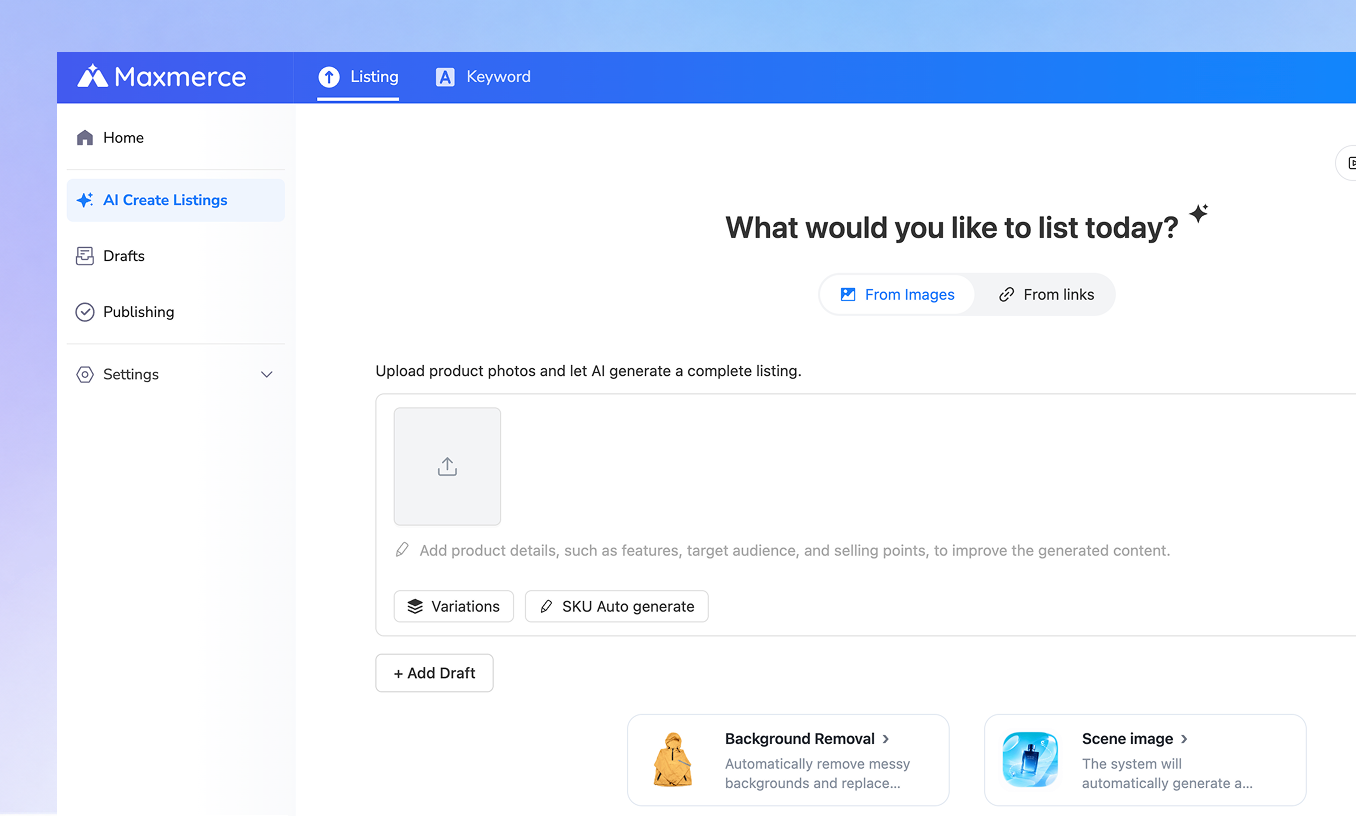
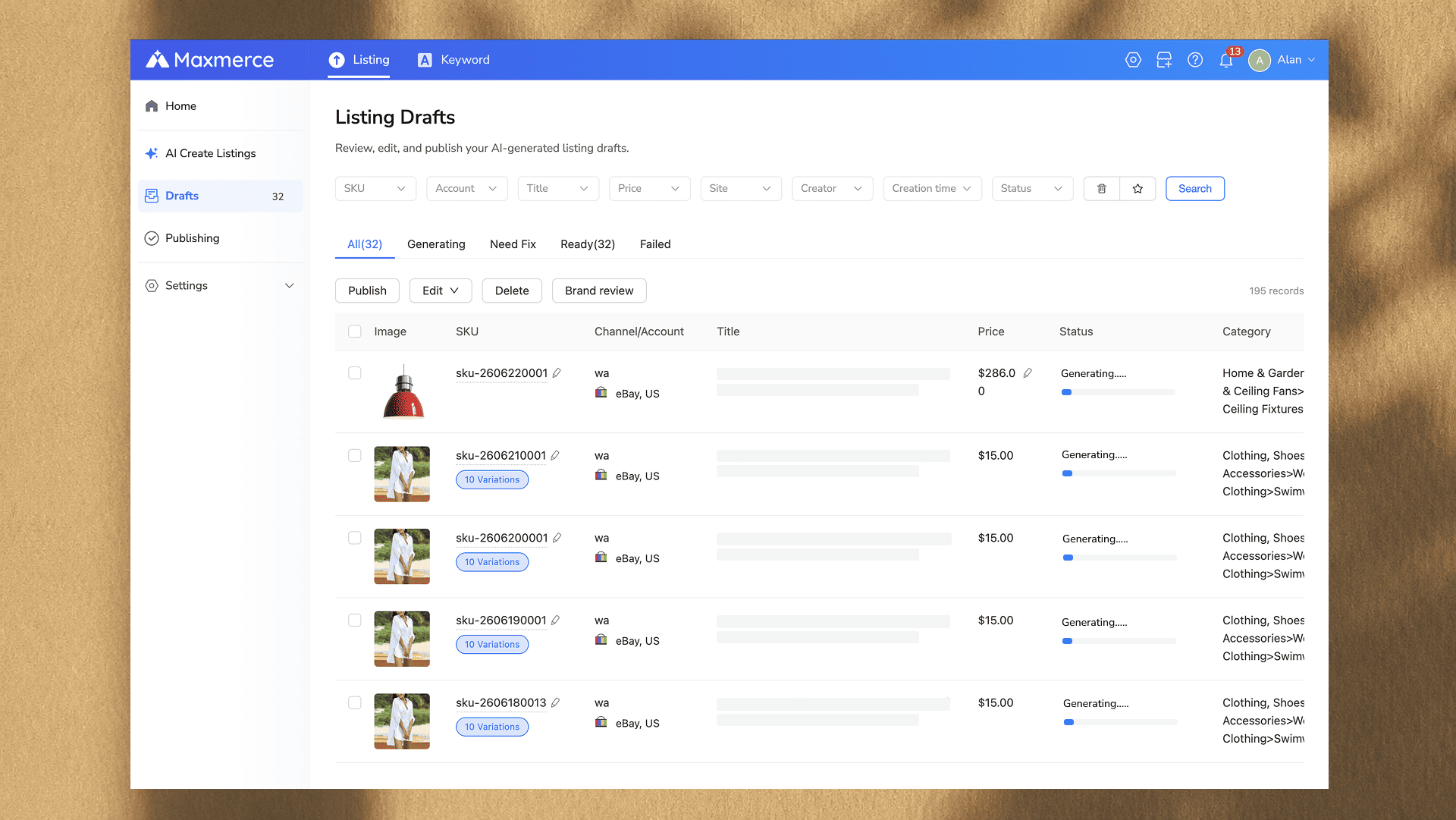
The Maxmerce eBay AI Listing Tool creates editable category, title, description and item-specific drafts from product photos and details. The current AI Create Listings screen also exposes a Variations control while you prepare the product. Review the selected category, generated facts and every option against the actual item; the tool does not override eBay’s eligibility or revision rules.
FAQ
Do I need to buy an eBay Store subscription to make the button appear?
Do not buy a subscription based only on a missing button or an old tutorial. The official creation guidance cited above points first to category and fixed-price eligibility. Check the requirements for your marketplace and account if those checks do not resolve it; this guide does not establish a universal paid-Store requirement.
Can I choose a different category just because another seller has variations?
Only choose a category that accurately fits your item. Another seller’s listing is not proof that its category or structure is appropriate for yours. Check your exact category and any second category against current eBay guidance.
Should I follow a new-listing tutorial for an existing listing?
Not without checking revision rules. Record the existing listing’s status and the change you want, then verify that the edit is permitted. Do not assume a setup option can be added to every live listing.
Will an AI-generated category fix variation errors automatically?
No such guarantee follows from category generation. AI can reduce manual drafting, but the category must fit the product and support the intended structure. Confirm the allowed details and actual stock before publishing.
Official eBay sources reviewed October 2, 2026. The routing table and fictional stock worksheet are original editorial teaching aids. AI assisted with the draft and cover. Maxmerce interface screenshots show the current preparation workflow, not an eBay diagnostic result or customer account.