eBay Listing Categories: Choose by What You Actually Sell
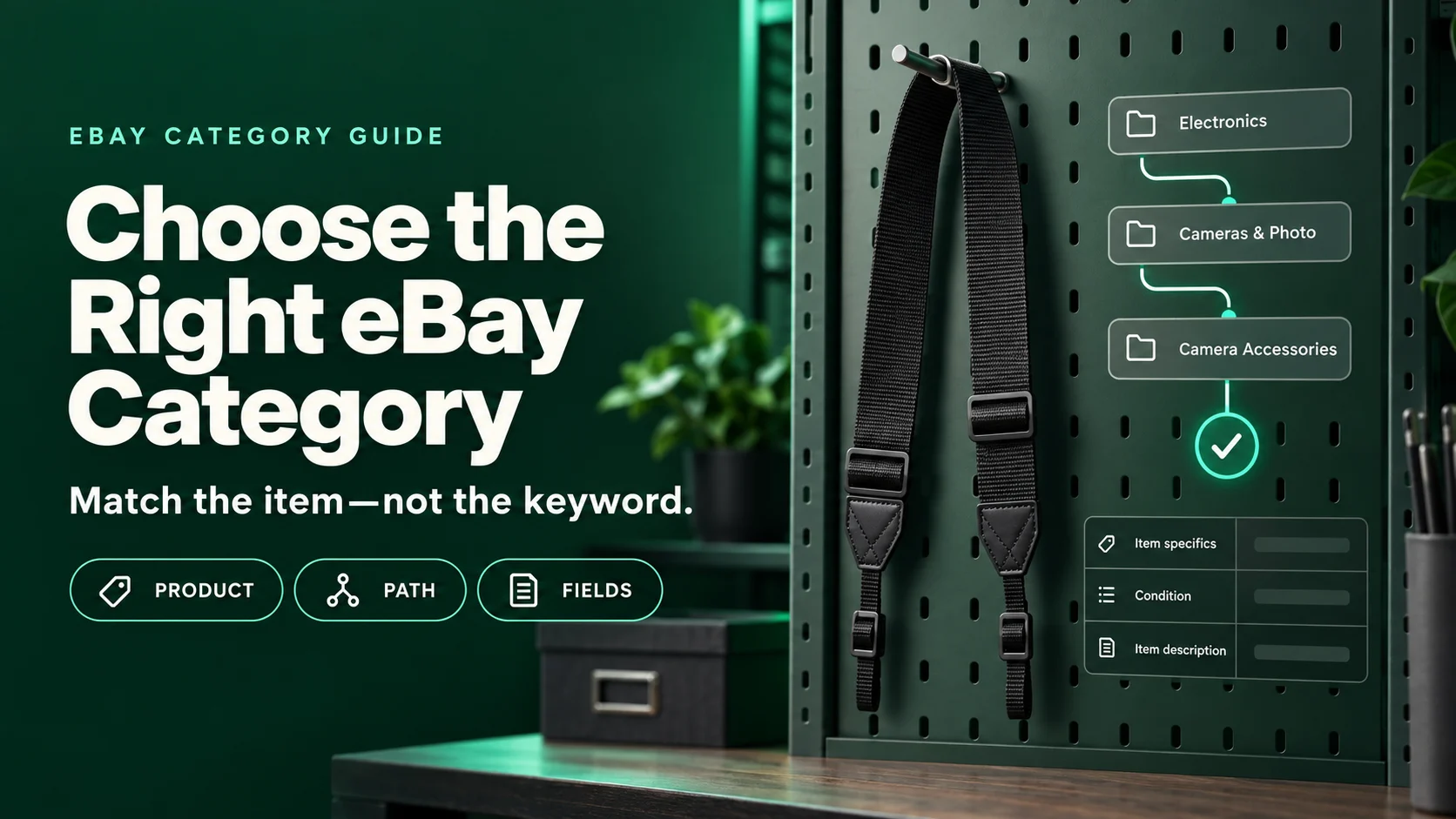
Choose eBay listing categories by the item the buyer will receive, not the most popular word in your title. Start with the product’s identity, compare the most specific relevant options in the current marketplace, and then check whether the category’s item-specific fields describe that product. A camera strap is an accessory—not a camera—even when “camera” leads the keyword list.
This guide gives you a repeatable category-review worksheet before you fill in item specifics. It covers marketplace listing categories, not the sections you create inside your own eBay Store. Category trees can change and can differ by eBay site, so verify the available path while creating the listing. The camera-strap example below is fictional.
First, write one sentence that identifies the actual offer
Put the keyword list aside for a moment. Complete this sentence:
“The buyer receives one ___, with ___ included; ___ is not included.”
If you cannot finish it confidently, resolve the product facts before choosing a category. For our example, the buyer receives one unbranded black camera neck strap with its attached adjustment buckles. No camera, lens, or carrying bag is included. The strap has no verified model-specific compatibility claim. Its material composition still needs checking, so we will not call it leather or nylon.
That short record prevents two common editing errors: letting a prop become part of the offer and choosing a category for the equipment an accessory works with rather than the accessory itself.

What eBay’s category suggestions do—and what you still check
eBay’s category guidance says a category is usually pre-populated from suggestions based on the listing title. If the suggestion is not right, you can search or browse for an alternative. eBay also says it may change a listing’s category when the selected category does not match the item.
Take the suggestion as a starting point, not proof. A title that mentions both “camera” and “strap” still requires the seller to check what is actually for sale. Adding stronger keywords will not turn an accessory into a device.
eBay’s category and item-specific documentation explains that category trees are marketplace-specific and subject to change. Its Taxonomy API returns suggested leaf categories, while the item aspects associated with a selected category determine which attributes are required, optional, or constrained. That is why this worksheet does not provide a permanent category ID to copy.
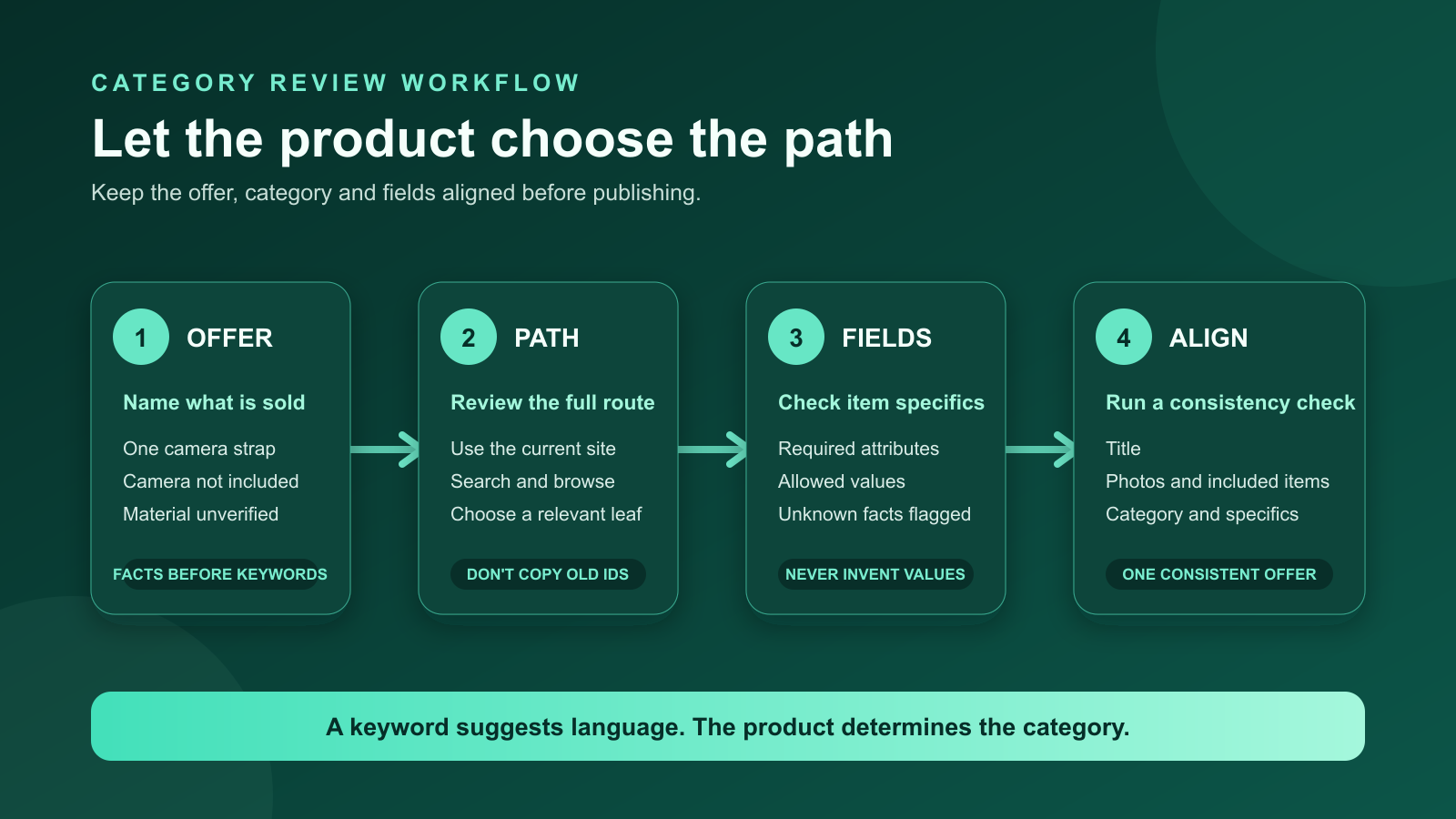
Work through the camera-strap example
- Describe the offer accurately. Use a working title such as “Black Camera Neck Strap with Adjustable Buckles.” Do not add a camera model unless compatibility has been verified.
- Review the suggested path. Read the full route, not just a familiar parent label. Ask whether it ends at the kind of product being sold.
- Search more specifically when necessary. For this example, search for “camera neck strap” rather than relying on “camera.” Browse the alternatives available in the current listing flow.
- Check the fields against the item. Strap-related attributes should be answerable from the strap. A set of device-specific questions is a reason to recheck the path—not a reason to invent answers.
- Record the selected path and your reason. Copy the actual current path from eBay. Keep the rejected alternative so a reviewer understands the decision.
The table below compares offer types. These are editorial routing descriptions, not official category names or IDs.
| Actual offer | What to look for in the current category tree | What sends you back to review |
|---|---|---|
| One camera neck strap; no camera | A relevant strap or accessory endpoint | A device category requiring facts about a camera that is not included |
| One camera body with its strap included | A category for the camera itself | An accessory-only category that misrepresents the main item |
| One replacement carrying bag; no equipment | A relevant bag or case endpoint | A camera category chosen because the photos show equipment as a prop |
| A mixed physical bundle | A category appropriate to the combined offer after reviewing current guidance | Choosing a convenient path before establishing what the bundle contains |
Do not treat one awkward field as automatic proof that a category is wrong. A valid category may still request a product fact you have not gathered. First check the full path and field guidance; then inspect the product or reliable documentation. If the fact remains unknown, flag it instead of guessing.
Use this category-review worksheet
Copy the following fields into your listing notes. The “selected category path” cell is intentionally blank: filling it with a made-up path would defeat the check.
| Record | Camera-strap example or entry prompt |
|---|---|
| Actual product and quantity | One black camera neck strap |
| Included / excluded | Attached buckles included; camera, lens, and bag excluded |
| Marketplace and review date | Enter the eBay site where you will list and today’s date |
| Selected category path | Copy the full current path shown in eBay; record an ID only if available |
| Alternative rejected | A camera-device path, if suggested: it describes an item not included |
| Evidence for the choice | The offer is a strap, and the selected path describes that accessory |
| Unresolved facts | Material composition and any claimed model compatibility need verification |
| Next reviewer action | Confirm the path, then complete current required fields from evidence |
Once the category is settled, review every item specific again. Avoid reusing another item’s attribute set merely because its title looks similar. Category-specific fields may differ, and the retained values still need to describe the actual product.
Should you add a second eBay category?
Only when the item is fully relevant to both categories and the current listing flow allows it. eBay says adding a second category carries an insertion fee even when a free listing is used. Some categories exclude second-category listings, and variations can depend on category-specific details that may not be available in the second category.
For a simple camera strap, do not add an unrelated camera-device category just to increase exposure. Relevance comes first. Check the current fee and eligibility information in eBay’s category guidance before deciding.
Where an AI-generated listing draft fits
A photo-based draft can give you a category and item specifics to review alongside the title and description. It cannot replace the offer-identity check. A photograph may include props or fail to show whether a part is included; your listing needs that distinction in words.
The Maxmerce eBay AI Listing Tool can turn product photos and details into a review-ready eBay listing draft, including a proposed category and item specifics. Review every generated field against the physical item and the current options in eBay. Do not treat generated values as proof of material, compatibility, or category acceptance.
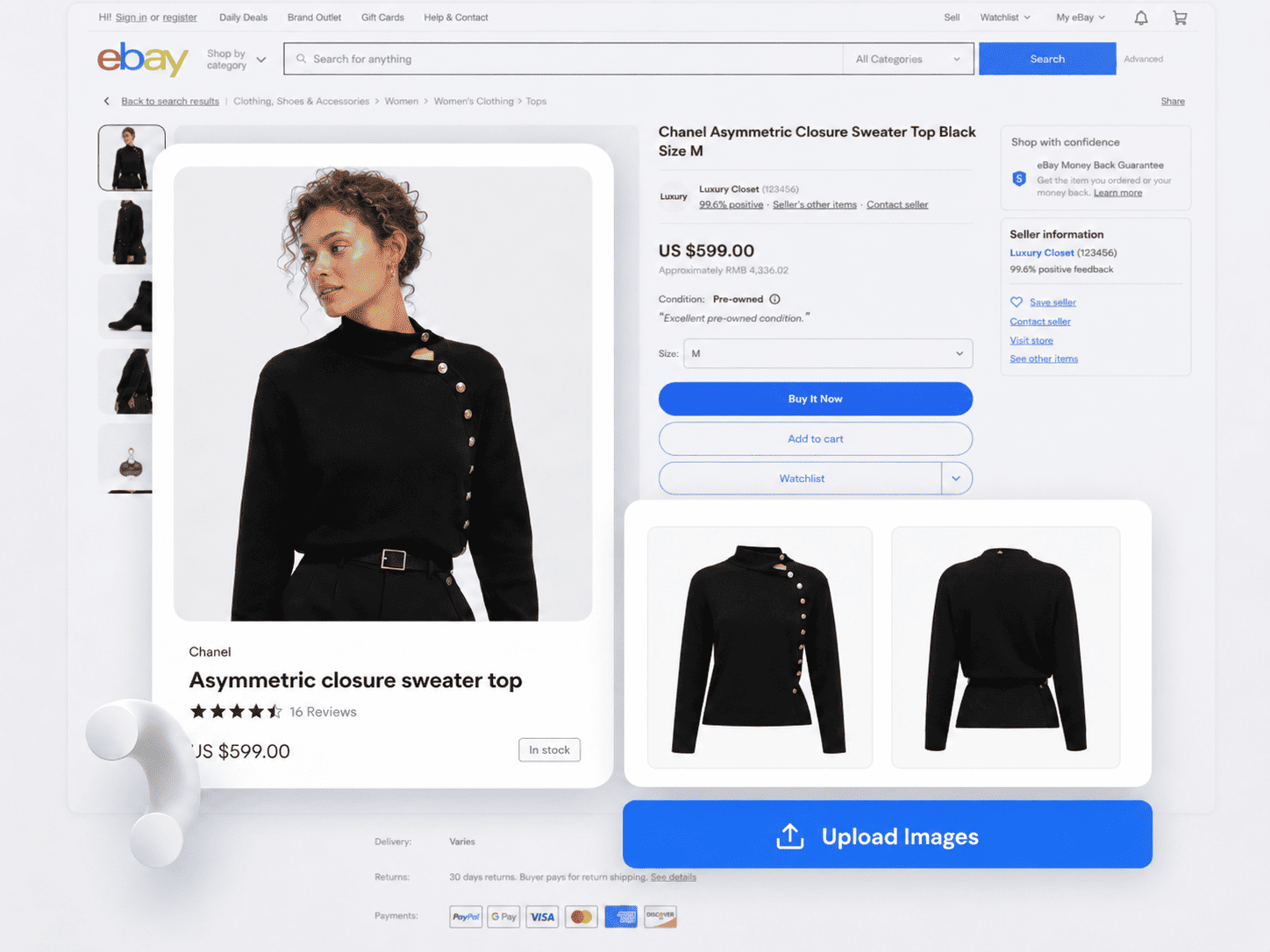
Use keyword research after the product and category decision—not instead of it. The Maxmerce eBay Keyword Research Tool can help collect buyer search phrases for title planning, but those phrases do not override category relevance. The category and its fields still need to match the offer you can support with product evidence.

Before you save the listing
- The category describes the item being sold, not a prop or an intended use alone.
- The full path was checked in the current eBay marketplace, not copied from an old spreadsheet.
- Required and optional item specifics were reviewed after the category choice.
- Unknown material, compatibility, model, and condition facts remain flagged rather than invented.
- The title, photographs, included-items description, category, and item specifics describe one consistent offer.
- If a second category is used, the item is relevant to both and the current fee and eligibility rules were checked.
This is a relevance and accuracy check, not a promise of higher rankings or approval. Keep the worksheet with the draft so the next reviewer can reproduce the decision.
No. Search demand can help you phrase a relevant listing, but the category must fit the product. “Camera” may be a useful context word for a strap; it does not make a device category suitable for that offer.
Use it only as a candidate to investigate. Confirm that the other listing sells the same kind of item on the same eBay marketplace, then check the current category path and fields yourself.
Search using the specific product name and browse the current category tree. Recheck whether the title overemphasizes a related device or use case. If the correct choice remains unclear, consult current eBay guidance instead of forcing an unrelated category.
Yes. Available, required, and constrained item specifics depend on category. Review the fields shown after the change and verify that any retained values still describe the product correctly.
No. It is a human review aid. The current listing flow and eBay’s guidance determine the available options; a completed worksheet does not certify policy compliance or guarantee acceptance.
eBay guidance, category documentation, and Maxmerce product information reviewed September 11, 2026.